
Do you have hundreds of photos named IMG_0001, DSC_4521, or Screenshot (34)? Those names mean nothing. They make it hard to find your photos and even hurt your SEO if you upload them to a website.
The good news? You can rename all your photos at once in just a few clicks.
In this guide, you’ll learn 4 easy ways to rename multiple photos at once on Windows 10 and 11. No paid software needed.
Table of Contents
Why Should You Rename Your Photos?
Before we jump in, here’s why it matters:
- Find photos faster: A file named beach-vacation-2024.jpg is easier to find than IMG_4823.jpg.
- Better SEO: Search engines read image filenames. Descriptive names help your photos show up in Google Images.
- Stay organized: Consistent naming keeps your photo library clean and professional.
- Look more professional: Clients and employers notice when your files are labeled clearly.
Now let’s get into the methods.
Method 1: Rename Multiple Photos Using Windows File Explorer (Quickest Way)
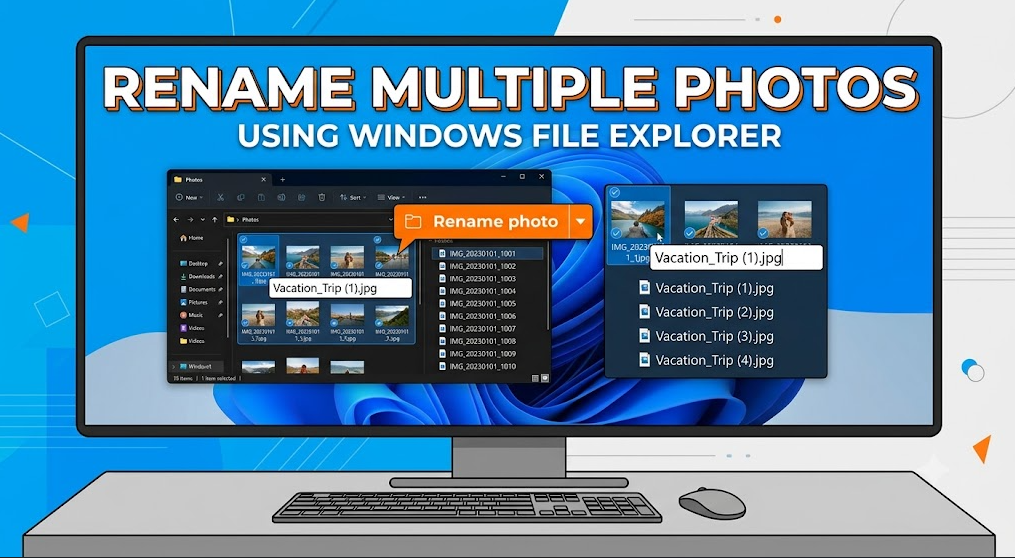
The fastest way to rename image files is the Windows File Explorer. In this method, there is no need to download or install any software. It works on both Windows 10 and 11. Follow the steps below to rename image files quickly:
- Open File Explorer and go to the folder with your photos.
- Select all the photos you want to rename.
- Press Ctrl + A to select all files.
- Or hold Ctrl and click each photo you want.
- Right-click on the first selected photo and choose Rename.
- Type your new name (for example: vacation-photo) and press Enter.
- Windows will automatically rename all selected photos like this:
- vacation-photo (1).jpg
- vacation-photo (2).jpg
- vacation-photo (3).jpg
- That’s it! Done in under 30 seconds.
Method 2: Rename Photos Using Windows PowerShell
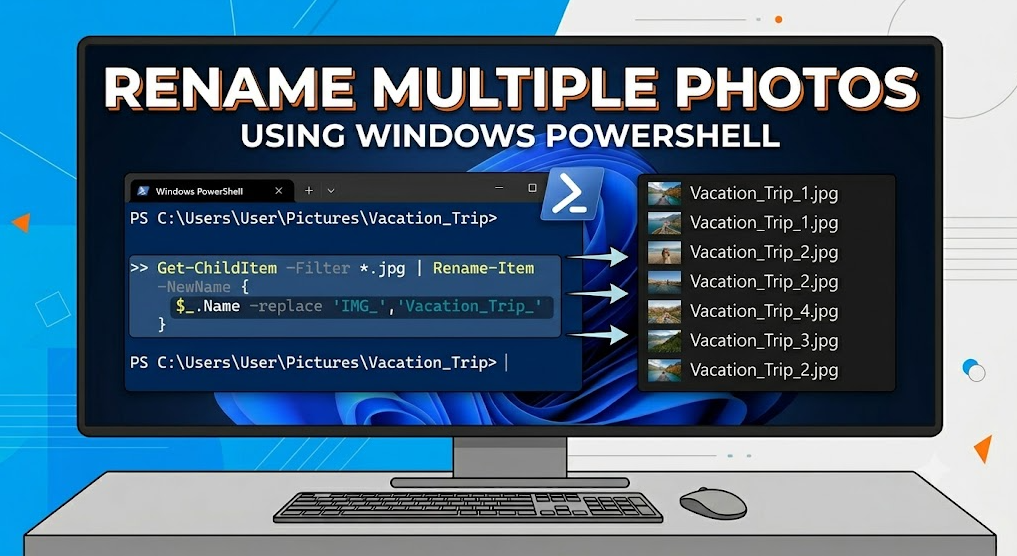
PowerShell is the second method to rename multiple image files on Windows. It gives you more control and allows you to rename photos with custom prefixes, numbers, or even dates. It works on Windows 10 and 11. Simply follow the steps below to rename image files using the PowerShell method:
Step 1: Open the folder with your photos. Hold Shift and right-click inside the folder. Choose Open PowerShell window here. On Windows 11, you may need to click Show more options to see this.
Step 2: Type this command and press Enter:
$i=1; Get-ChildItem *.jpg | Rename-Item -NewName { “photo-$i.jpg”; $script:i++ }
This renames all JPG files in the folder to:
- photo-1.jpg
- photo-2.jpg
- photo-3.jpg
Want to rename PNG files instead? Change *.jpg to *.png. Want a different base name? Replace photo with whatever you like. For example:
$i=1; Get-ChildItem *.jpg | Rename-Item -NewName { “product-image-$i.jpg”; $script:i++ }
Heads up: PowerShell is powerful but can feel tricky if you’re new to it. One small typo can cause an error. If that happens, don’t worry, just re-read the command carefully and try again.
Method 3: Rename Photos Using Command Prompt
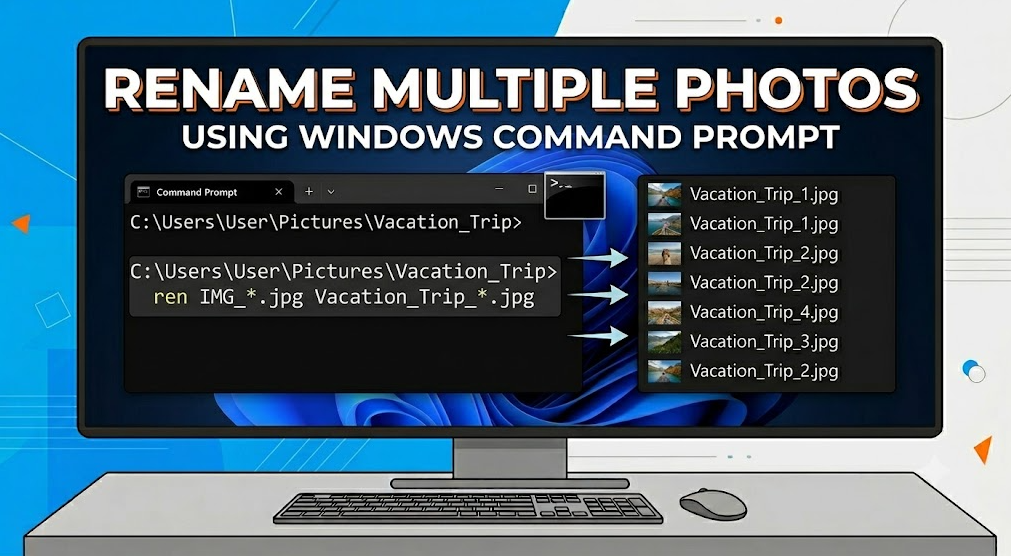
Command Prompt is another built-in Windows tool. It’s simple and works great for basic batch renaming. It works on Windows 10 and 11. Follow the steps below to rename images using Command Prompt:
Step 1: Open the folder with your photos. Click the address bar at the top, type cmd, and press Enter. This opens Command Prompt in that folder.
Step 2: Type this command and press Enter: ren *.jpg photo-*.jpg
This renames all JPG files to:
- photo-IMG_0001.jpg
- photo-DSC_4521.jpg
It adds your prefix to the existing filename. It’s simple but doesn’t give you clean sequential numbers.
To rename PNG files: ren *.png image-*.png
Note: Command Prompt doesn’t let you fully replace the original name with a sequential number like photo-1 or photo-2. For that, use PowerShell (Method 2) or the online tool (Method 4).
Method 4: Rename Multiple Photos Online: Free and Easy Method
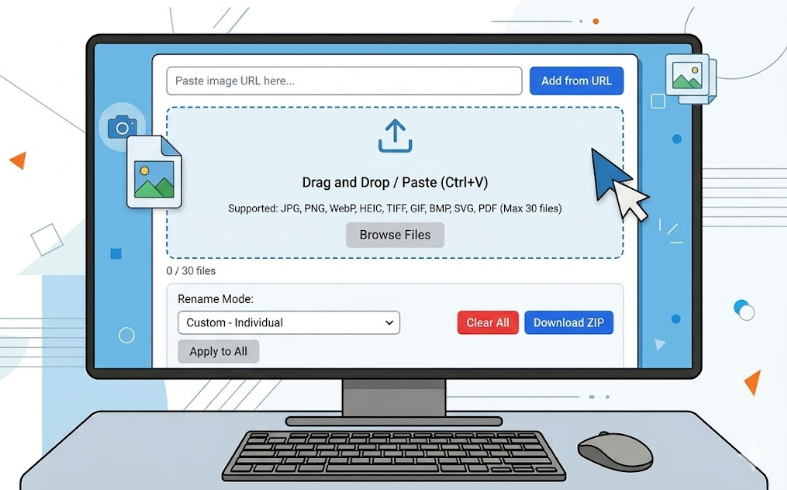
Need a simpler way to rename multiple photos without using commands or built-in Windows tools?
An online batch photo renamer is the best option. It lets you rename multiple image files directly in your browser using custom names, sequential numbering, dates, prefixes, or suffixes. There’s no software to install, and the entire process takes just a few clicks.
Why use it?
- Rename photos with custom names, sequential numbers, dates, or suffixes
- Works with JPG, PNG, GIF, WebP, BMP, TIFF, HEIC, and SVG files
- 100% browser-based, your photos stay private
- Download all renamed files as a ZIP in one click
Steps to rename image files:
Step 1: Go to the Rename Photo tool online.
Step 2: Drag and drop your photos into the tool or click to “browse files” and select multiple files.
Step 3: Choose how you want to rename them:
- Custom names: You can give a custom name to each photo
- Sequential numbers: Get clean names like product-1.jpg, product-2.jpg
- Date-based naming: Add today’s date to filenames
- Original + Suffix: Keep the old name and add an identifier
Step 4: Click Download or Download All as ZIP.
That’s it. Clean, organized, SEO-ready filenames in seconds.
Pro Tip: Before uploading photos to your website or blog, always rename them with descriptive keywords. For example, red-running-shoes-nike.jpg will rank in Google Images. IMG_5892.jpg won’t.
Which Method Should You Use?
| Method | Best For | Skill Level |
| File Explorer | Quick, simple batch renaming | Beginner |
| PowerShell | Custom sequential names with full control | Intermediate |
| Command Prompt | Adding a quick prefix to filenames | Intermediate |
| Rename Image | SEO-friendly names, custom options, all formats | Beginner |
File Explorer works well for quick, basic batch renaming. If you need more advanced naming options, such as custom names, sequential numbering, or date-based filenames, a dedicated batch photo renaming tool offers greater flexibility and control.
Frequently Asked Questions
Can I rename photos without changing their quality?
Yes! Renaming only changes the filename, not the image itself. The pixels, resolution, and format stay the same.
Can I undo a batch rename in Windows?
Yes. Right after renaming, press Ctrl + Z to undo. This works in File Explorer. It does not work in PowerShell or Command Prompt.
How many photos can I rename at once?
In File Explorer, there’s no hard limit. You can rename hundreds of photos at once. The free Rename Image online tool also supports multiple files in one go.
Does renaming photos help with SEO?
Yes! Google uses image filenames as a ranking signal. A descriptive filename, such as chocolate-birthday-cake.jpg, helps your image appear in Google Image search. A generic name like DSC_4521.jpg provides Google with no useful information.
What is the best format for image filenames?
Use lowercase letters and hyphens between words. Example: blue-running-shoes.jpg. Never use spaces, underscores, or special characters in filenames.
Can I rename HEIC photos from my iPhone?
Yes. The free Rename Image tool supports HEIC files. File Explorer on Windows also lets you rename HEIC files.
Quick Summary
Here’s everything in one place:
- File Explorer: Select photos → Right-click → Rename → Type name → Enter
- PowerShell: Run a one-line command to rename files with sequential numbers
- Command Prompt: Add a prefix to all filenames with a simple ren command
- Rename Image tool (Online): Upload → Choose naming method → Download.
Renaming your photos is one of those small habits that makes a big difference. It keeps your files organized, saves you time when searching, and helps your images rank better on Google.