
Large image files can slow down websites, consume valuable storage space, and make file sharing more difficult. That’s why image compression is essential for improving website performance, user experience, and search engine optimization. The challenge is reducing image file size without noticeably affecting image quality.
Fortunately, modern image compression techniques make it possible to optimize images while preserving their clarity, sharpness, and visual appeal. Whether you’re compressing photos for a website, blog, online store, or personal use, choosing the right compression method can significantly reduce file size without sacrificing quality.
In this guide, you’ll learn how to compress images without losing quality, the factors that affect image quality, common mistakes to avoid, and the best ways to optimize images across different devices.
Table of Contents
What Is Image Compression?
Image compression is the process of reducing an image’s file size while maintaining its visual quality as much as possible. It works by removing unnecessary image data, optimizing file structure, or reducing the amount of information required to store the image. The primary goal is to create smaller image files that load faster, use less storage space, and are easier to share.
Image compression is widely used for websites, blogs, e-commerce stores, social media platforms, and email attachments because large image files can negatively affect page speed and user experience. Depending on the method used, images can be compressed with little to no visible quality loss.
Modern image compression tools help optimize popular formats such as JPEG, PNG, WebP, and AVIF, making it possible to reduce file size while preserving image clarity, detail, and overall appearance.
How to Compress Images Without Losing Quality
Reducing image file size doesn’t have to mean sacrificing image quality. With the right method, you can compress images efficiently while preserving their sharpness, colors, and overall appearance. Whether you’re using a computer, mobile device, or an online image compressor, the following methods can help you optimize images for faster loading and easier sharing.
Compress Images on Windows
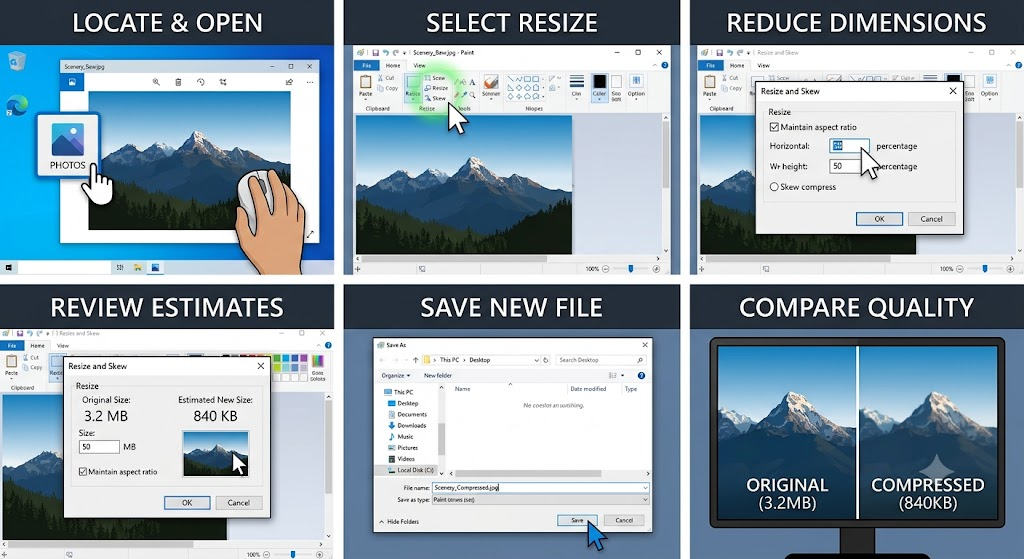
You can compress images on Windows using built-in tools like Photos or Paint:
- Locate the image you want to compress and open it in Photos or Paint.
- Select the Resize option from the toolbar or menu.
- Reduce the image dimensions by entering a smaller width or height while maintaining the aspect ratio.
- Review the estimated file size and image dimensions.
- Save the resized image as a new file to preserve the original version.
- Compare the compressed image with the original to ensure the quality remains acceptable.
Tip: For the best balance between image quality and file size, avoid reducing image dimensions more than necessary and always keep a backup of the original image.
Compress Images on Mac
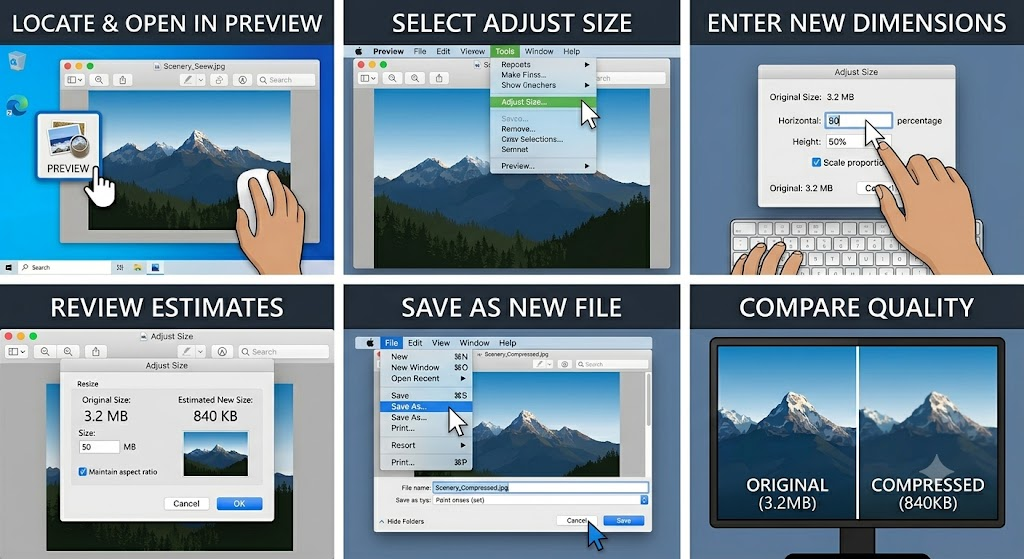
Mac users can easily compress images using the built-in Preview application:
- Locate the image you want to compress and open it in Preview.
- Click Tools in the menu bar and select Adjust Size.
- Enter smaller width or height values to reduce the image dimensions.
- Ensure Scale Proportionally is enabled to maintain the image’s aspect ratio.
- Review the resulting file size before applying the changes.
- Click OK and save the compressed image as a new file.
Tip: Reducing image dimensions is often the easiest way to decrease file size while maintaining good image quality. Save a copy of the original image in case you need the full-resolution version later.
Compress Images on Mobile Devices
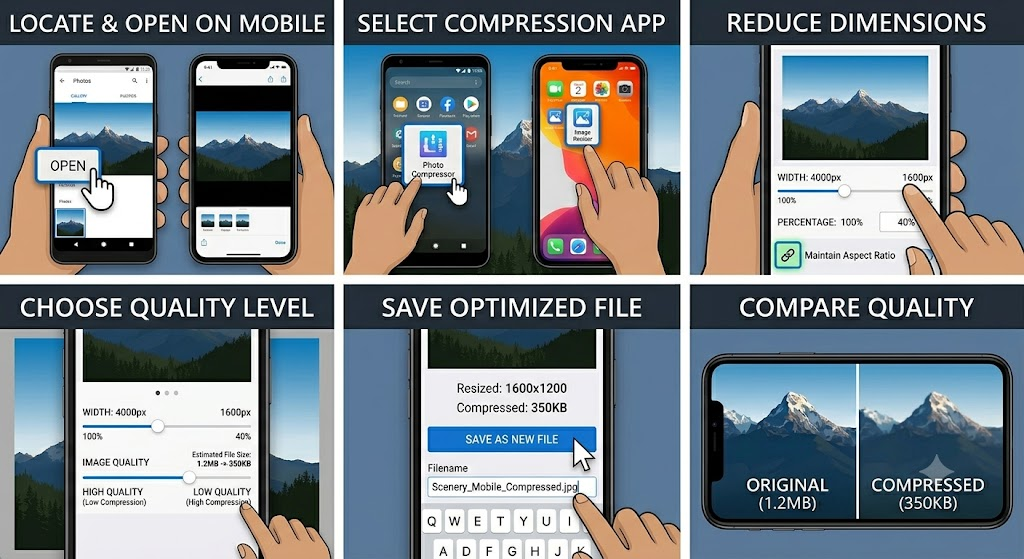
You can compress images directly on your smartphone using built-in editing tools or image compression apps:
- Open the image you want to compress on your Android or iPhone device.
- Use the built-in photo editor or an image compression app.
- Resize the image by reducing its dimensions while maintaining the original aspect ratio.
- Choose the desired image quality or compression level, if available.
- Save the optimized image as a new file.
- Check the compressed image to ensure it retains acceptable quality.
Tip: Compressing images before sharing them via email, messaging apps, or social media can reduce upload times and save storage space without noticeably affecting image quality.
Compress Images Online using Image Compressor
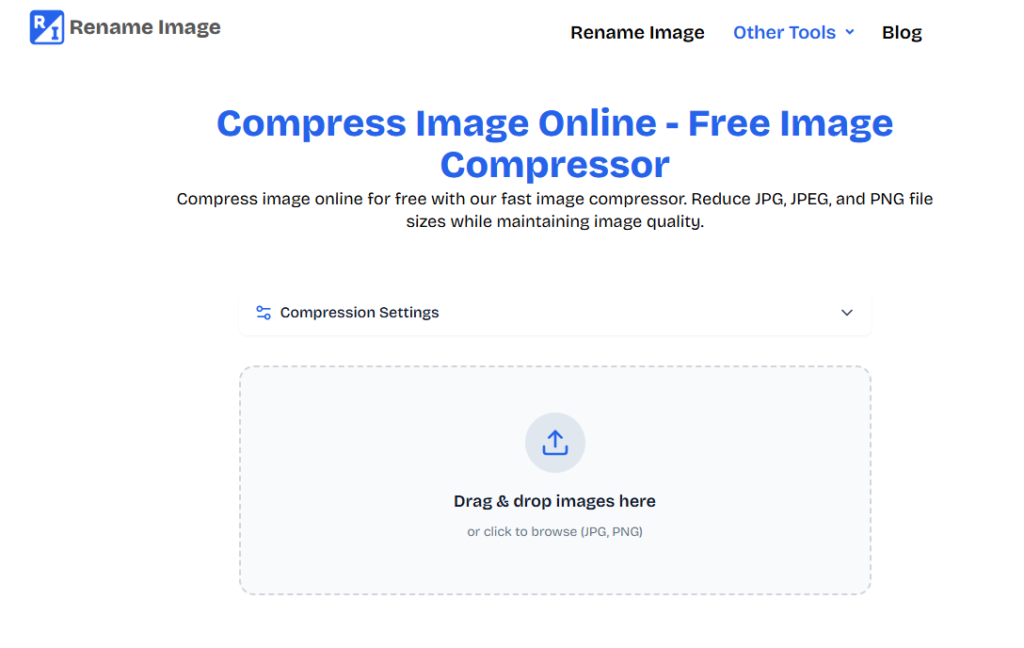
An online JPG compressor is the quickest and most convenient way to reduce image file size without installing software. There is no need to configure complex settings. It works directly in your web browser, and you can compress images from any device, including Windows PCs, Macs, Android phones, and iPhones, easily.
- Open the Image Compressor: https://www.renameimage.com/compress-image/.
- Drag and drop your image into the upload area, or click to select a file from your device.
- Choose your preferred compression level based on the desired balance between image quality and file size.
- Once the image is uploaded, the tool automatically compresses and optimizes it.
- Preview the results and click the Download button to save the compressed image to your device.
Benefits of Compressing Images
Compressing images is essential for improving digital performance and efficiency. It helps reduce file sizes without significantly affecting visual quality, making websites faster, storage usage lower, and file sharing much easier. This balance between quality and performance is important for both user experience and SEO.
- Improves website loading speed and performance
- Enhances user experience with faster page access
- Boosts SEO and Core Web Vitals scores
- Saves storage space on servers and devices
- Speeds up image uploads, downloads, and sharing
- Maintains a balance between image quality and file size
Conclusion
Image compression is an easy way to make files smaller without losing image quality. It helps websites load faster, saves storage space, and makes images easier to share.
You can compress images on Windows, Mac, and mobile devices using an online JPG compressor. The main goal is to keep a good balance between small file size and clear image quality. When done right, image compression improves speed, SEO, and user experience.